
WhatsApp Web Guide: How to Use WhatsApp on Laptop Without Touching Your Phone Again and Again
Chat From Desktop
 IN
Wed, Sep 16, 2026 | 05:06 AM IST
IN
Wed, Sep 16, 2026 | 05:06 AM IST

Most of us know this situation. You are working on your laptop, your phone keeps buzzing, and every two minutes you pick it up to reply to one small message. It breaks the flow. Sometimes you are typing a long reply, sending a document, or checking an address, and doing everything from the phone feels slow. That is where WhatsApp Web becomes useful. It lets you open your WhatsApp account on a computer browser. You can read messages, reply faster with a keyboard, send files, check media and continue chats without constantly lifting your phone. The setup is also simple. You open the official web page on your computer and link it with your phone by scanning a QR code. WhatsApp’s own help page says users can go to web.whatsapp.com and follow the on-screen instructions to scan the code from their phone. For students, office workers, small business owners and even families, this is a small convenience that saves time every day.
The simple answer to what is whatsapp web is this: it is the browser version of WhatsApp. You do not need to install a separate app if you only want to use it from your browser. You just open the web page, link your phone and start chatting. Times of India explains that users activate the web version by scanning a QR code from the phone app, after which chats and media can be accessed on the computer interface. It also notes that messages and media continue to use end-to-end protection like the mobile version. This is helpful when your work already happens on a laptop. Typing is faster. Files are easier to attach. Photos and documents can be downloaded directly on the computer. And if you manage client messages, family groups or office updates, the larger screen simply feels better. There is also whatsapp desktop, which is the separate app for Windows and Mac. WhatsApp’s official download page says the desktop app is available for supported Windows and macOS systems, while users on other operating systems can use WhatsApp in the browser. So the choice is simple. Use the browser version for quick access. Use the desktop app if you want a more app-like experience.
The most common way to use it is through the whatsapp web qr code. Open web.whatsapp.com on your computer. A QR code will appear on the screen. Now open WhatsApp on your phone. Go to Linked Devices. Tap Link a Device. Your phone may ask for fingerprint, face unlock or PIN verification. After that, scan the QR code on the computer screen. Once scanned, your chats will appear on the browser. WhatsApp says users can link a new device by scanning a WhatsApp QR code or by using a phone number option where available. It also says users should only link devices on WhatsApp Web or official WhatsApp apps for Windows and Mac. This part is important. Never scan a QR code from a random site. Never link your WhatsApp on someone else’s computer unless you plan to log out immediately after use. I have seen people open their WhatsApp on office systems and forget to log out. It sounds small, but it can expose private chats. So treat linked devices like you treat your phone.
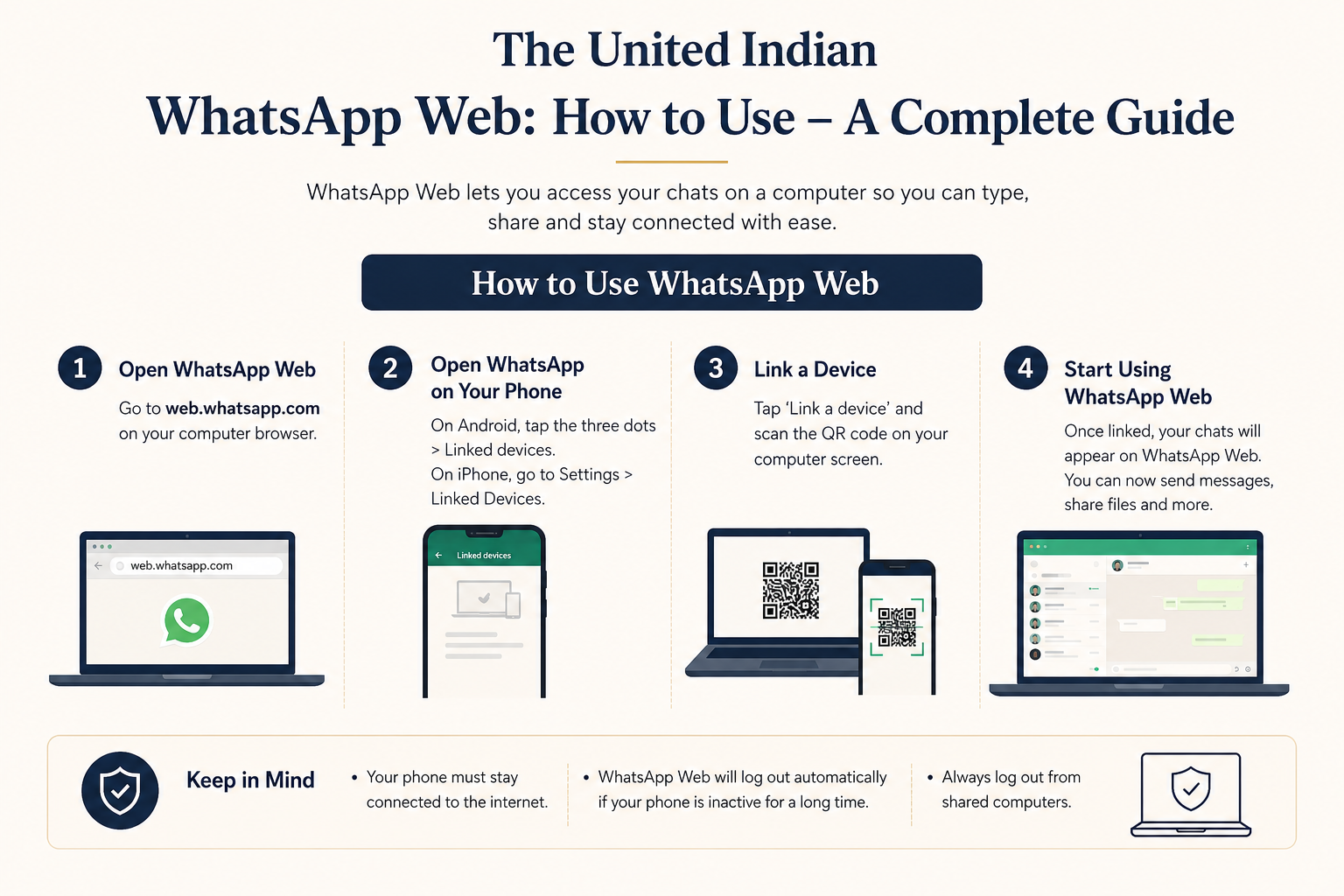
Once your account is connected, you can use it for regular chats. You can send text messages, reply to groups, share photos, download files, forward documents and search conversations. It feels almost the same as phone WhatsApp, but with a keyboard. This is especially useful for people who handle work messages. Suppose someone sends you a PDF, invoice, image or address. On the phone, you may download it and then transfer it somewhere else. On the computer, it is faster. You can save it directly, rename it and upload it wherever needed. You can also use emojis, stickers, voice notes and file attachments. For many people, this becomes part of daily work. Open browser. Open messages. Reply quickly. Done. That is the real charm of whatsapp web. It is not fancy. It is practical.
A common question is about video call on whatsapp web. WhatsApp’s help page says calling on WhatsApp Web is supported on Windows, Linux and macOS, and works best on browsers such as Chrome, Edge, Safari and Firefox. Users may need to allow camera and microphone access for calling to work properly. Still, if calling does not work for you, check your browser, permissions and device support. Sometimes the feature may not behave the same for every user or browser setup. For people searching whatsapp web download, remember this clearly. The web version does not need a download. You open it in your browser. If you want an installed app, then use the official WhatsApp download page for Windows or Mac. WhatsApp says Windows users can download it from the Microsoft Store, and Mac users can download it from the WhatsApp website or Apple App Store. Security is also simple. Use only the official website. Log out from shared computers. Do not scan unknown QR codes. Check Linked Devices on your phone from time to time. If you see a device you do not recognise, log it out. These small habits matter because WhatsApp is personal. It has family messages, work details, photos, documents and sometimes bank-related conversations too. So convenience should not come at the cost of privacy.
WhatsApp on a computer is not just a tech trick anymore. It has become part of normal digital life. Students use it for notes. Small businesses use it for customer chats. Families use it to send photos and documents. Office workers use it because typing long replies on a phone can get tiring. The good thing is that the setup takes only a few minutes. The better thing is that it makes daily messaging smoother. But users should also stay careful. Linked devices are useful, but they should be managed properly. A simple habit can save trouble later. Check the device list. Log out when needed. Use official pages only. That is enough for most users.
At The United Indian, we look beyond the basic guide. This story matters because digital tools like WhatsApp are now part of everyday work, study and family communication.
Using WhatsApp on a computer can save time, but safety matters too. A linked device should always be trusted and checked regularly.
Follow The United Indian for simple tech guides, digital safety tips and everyday explainers that make online tools easier to understand.
Everything you need to know
WhatsApp Web is the browser version of WhatsApp. It lets users open their WhatsApp account on a laptop or desktop by linking it with their phone.
Open web.whatsapp.com on your computer, go to Linked Devices on your phone, tap Link a Device and scan the QR code shown on the screen.
No. WhatsApp Web works directly in a browser. A download is only needed if you want the separate WhatsApp Desktop app for Windows or Mac.
Video calling may work on supported browsers and systems, but users should check camera, microphone and browser permissions if the feature does not appear.
Yes, it is safe when used through the official website. Users should avoid unknown QR codes, log out from shared computers and regularly check linked devices.






Sep 15, 2026
TUI Staff
Sep 05, 2026
TUI Staff
Sep 05, 2026
TUI Staff
Sep 04, 2026
TUI Staff
Sep 15, 2026
TUI Staff
Sep 15, 2026
TUI Staff
Sep 14, 2026
TUI Staff
Sep 14, 2026
TUI Staff

Stay informed with independent, fact-checked journalism on technology, environment, government, economy and more. India’s most trusted digital news platform.








Comments (0)
Be the first to comment!